Showing posts with label automation. Show all posts

How to monitor Exchange Queues?

How to monitor Exchange Queues?

How to monitor Exchange Queues / How to setup an Alert for Exchange Queues...


#Author : Nishant Naidu

#Technet - i-TechNinja

# https://social.technet.microsoft.com/profile/i-tech%20ninja/
#https://itechninja.blogspot.in/
#https://crazycerebro.blogspot.in
#https://social.technet.microsoft.com/wiki/contents/articles/47620.how-to-monitor-exchange-queues-how-to-setup-an-alert-for-exchange-queues.aspx

#load Snapin
Add-PSSnapin Microsoft.Exchange.Management.PowerShell.SnapIn;

#Set Mailing parameters
$sendMailMessageParams = @{
    Smtpserver = " smtp server "
    To         = " To? "
    From       = " From? "
}


# HTML Body 
$head = "<style>",
        "BODY { background-color: white; }",
        "TABLE { border-width: 1px; border-style: solid; border-color: black; border-collapse: collapse; }",
        "TH { border-width: 1px; padding: 5px; border-style: solid; border-color: black; foreground-color: black; background-color: LightBlue}",
        "TD { border-width: 1px; padding: 5px; border-style: solid; border-color: black; foreground-color: black; background-color: white}",
        "</style>" | Out-String
 #Logic to setup
if ($Queue = Get-ExchangeServer | Where { $_.isHubTransportServer -eq $true } | Get-Queue | Where-Object { $_.MessageCount -gt 200 } | Select Identity, DeliveryType, NextHopDomain, RiskLevel, MessageCount, Status, Velocity) {  $body = $Queue | ConvertTo-Html -Head $head | Out-String
#Invoke     
Send-MailMessage -Subject "Exchange Queue Alerts-Threshold 200" -Priority High -Body $body -BodyAsHtml @sendMailMessageParams
}
else{
    Send-MailMessage -Subject "Exchange Queue Alerts-Threshold 200" -Body "Queues are below Threshold limit - 200 "-BodyAsHtml @sendMailMessageParams
}

How to Use?

1. Save this file as .ps1 wherever with whatever name you want to.
2. Open Task Scheduler
3. Create a New task and set the task occurrence for this .ps1 file.

Thank You.
For any query, please comment down below.

#You can make use of BuyNow button for Donation purpose 

How to check Remote Server Configuration/Info - Using Powershell

How to check Remote Server Configuration/Info - Using PowerShell


With the help of this powershell script, you will be able to query a remote server and get their 
configuration setting information.

This will help and save lot of time since you dont need to login to any server to check the details.

The server that you are about to query should be firewall friendly, if you are not able to ping the server then you cant query any of the below remote server attributes.

Remote server Info Includes:

  • System Configuration Information
  • Services Information of a remote server
  • Drive Configuration of a remote server
  • Network Configuration of a remote server
  • Installed Hotfixes on a remote server
  • Processor Details of a remote server
  • Installed Application Details on a remote server
  • Administration information of a remote server

Let's begin 

Script

How to check System Configuration Information using Powershell

$path = "$([Environment]::GetFolderPath("Desktop"))\System Config Info.txt"; 
Get-WmiObject -Class Win32_OperatingSystem -ComputerName $d | fl * | fl > $path; 
notepad $path; 

How to check Services Information of a remote server using Powershell

$path = "$([Environment]::GetFolderPath("Desktop"))\Services Info.txt"; 
Get-WmiObject -Class Win32_Service -ComputerName $d | Out-File $path 
notepad $path; 


How to check Drive Configuration of a remote server using Powershell

$path = "$([Environment]::GetFolderPath("Desktop"))\Drive Info.txt";
"Drive information for $env:ComputerName" | out-file  $path -Append; 
Get-WmiObject -Class Win32_LogicalDisk -ComputerName $d | Where-Object { $_.DriveType -ne 5 } | Sort-Object -Property Name | Select-Object Name, VolumeName, VolumeSerialNumber, SerialNumber, FileSystem, Description, VolumeDirty, ` @{ "Label" = "DiskSize(GB)"; "Expression" = { "{0:N}" -f ($_.Size/1GB) -as [float] } }, ` @{ "Label" = "FreeSpace(GB)"; "Expression" = { "{0:N}" -f ($_.FreeSpace/1GB) -as [float] } }, ` @{ "Label" = "%Free"; "Expression" = { "{0:N}" -f ($_.FreeSpace/$_.Size * 100) -as [float] } } | Format-Table  | fl | out-file  $path; 
notepad $path;

How to Check Network Configuration of a remote server using Powershell
$path = "$([Environment]::GetFolderPath("Desktop"))\Network Config Info.txt"; 

$nwINFO = Get-WmiObject Win32_NetworkAdapterConfiguration -ComputerName $d | Where-Object { $_.IPAddress -ne $null } | Select-Object DNSHostName, Description, IPAddress, IpSubnet, DefaultIPGateway, MACAddress, DNSServerSearchOrder | fl > $path; notepad $path; 


How to check Installed Hotfixes of a remote server using Powershell

$path = "$([Environment]::GetFolderPath("Desktop"))\Installed Hotfixes Info.txt";
Get-WmiObject -Class Win32_QuickFixEngineering -ComputerName $d | Out-File $path # -Encoding UTF8 -Append -Width 1000
notepad $path; 


How to check Process details of a remote server using Powershell

$path = "$([Environment]::GetFolderPath("Desktop"))\Processor Info.txt";
Get-WmiObject -Class Win32_Processor -ComputerName  $d  | Select-Object -Property [a-z]* | fL * | fl > $path; 
notepad $path;


How to check Installed Applications details on a remote server using Powershell

$path = "$([Environment]::GetFolderPath("Desktop"))\InstalleApp Info.txt";

Get-WmiObject -Class Win32_Product -ComputerName $d | Sort-Object Name | Select-Object Name, Vendor, Version, InstallDate | Format-Table  | fl > $path;

notepad $path;


How to check Administration Information on a remote server using Powershell


$path = "$([Environment]::GetFolderPath("Desktop"))\Admin Info.txt";

net localgroup administrators | fl > $path;
#new admin info1
Get-WmiObject win32_groupuser -ComputerName $d | Where-Object { $_.groupcomponent -match 'administrators' } |

ForEach-Object { [wmi]$_.partcomponent } | out-file $path -append;
#new admin info2
Get-WmiObject -Class Win32_UserAccount -ComputerName $d | Format-Table | Out-File $path -Append; notepad $path;

Screenshots:


How to Use?

1. Download the RemoteServerInfo tool from the link given below

2. Double on the file to launch it, you need to extract zip before launching

3. Enter the hostname in the text area provided, as shown in the screenshot

4. Once you have entered the hostname, then select appropriate options from the drop-down
     menu that you want to query 

5. Click on 'Initialise' to get the results

Bydefault  the result will be saved in your desktop.

Note: Entered hostname should be able to respond to your ping request. It should be firewall friendly to return results for your query. 

Download


Thanks for Downloading.

For any query, please comment down below.

#Share this project with your friends.

#This is only for Educational Purpose

#If you like the post, then forget to share. 

#You can make use of BuyNow button for Donation purpose


Check if Reboot is Required on multiple server - using Powershell GUI based tool

Check if Reboot is Required on multiple server - using Powershell GUI based tool


This is a powershell script that will help you to find if a reboot is required on a server or a multiple server.

Note: This script will not reboot any of the server. It will just give you true/false value if the reboot is pending or not.

Lets Start:

Whenever you check for updates, after updating the patches it generates registry RebootRequired.
This information is stored at HKeyLocalMachine of the registry.

Below are several paths where you can find it --

To open registry --> press windows+R then type regedit hit enter..

"HKLM\Software\Microsoft\Windows\CurrentVersion\Component Based Servicing\"

"HKLM\SYSTEM\CurrentControlSet\Control\Session Manager"

"HKLM\SOFTWARE\Microsoft\Windows\CurrentVersion\WindowsUpdate\Auto Update\RebootRequired "

 Script 1:

function Test-PendingReboot

{

if (Get-ChildItem "HKLM:\Software\Microsoft\Windows\CurrentVersion\Component Based Servicing\RebootPending" -EA Ignore) { return $true }

if (Get-Item "HKLM:\SOFTWARE\Microsoft\Windows\CurrentVersion\WindowsUpdate\Auto Update\RebootRequired" -EA Ignore) { return $true }

if (Get-ItemProperty "HKLM:\SYSTEM\CurrentControlSet\Control\Session Manager" -Name PendingFileRenameOperations -EA Ignore) { return $true }

try { 

$util = [wmiclass]"\\.\root\ccm\clientsdk:CCM_ClientUtilities"

$status = $util.DetermineIfRebootPending()

if(($status -ne $null) -and $status.RebootPending){

return $true

}

}catch{}


return $false

}
Script 2:
#specify text file path that contains list of server

$d = get-content "path to your text file"
  $RebootRequired = " "
  $RebootNotRequired = " "
  $badservername = " "
  foreach ($t in $d)
  {
   try
   {
    $baseKey = [Microsoft.Win32.RegistryKey]::OpenRemoteBaseKey("LocalMachine", $t)
    $key = $baseKey.OpenSubKey("Software\Microsoft\Windows\CurrentVersion\Component Based Servicing\")
    $subkeys = $key.GetSubKeyNames()
    $key.Close()
    $baseKey.Close()
    If ($subkeys | Where { $_ -eq "RebootPending" })
    {
     
     $RebootRequired = $RebootRequired + $t + "`r`n "
    }
    Else
    {
    
     $RebootNotRequired = $RebootNotRequired + $t + "`r`n"
    }
   }
   catch
   {
    $badservername = $badservername + $t + "`r`n"
    Write-Host "Non pinging servers are ignored. For other exceptions please contact Nishant" 
   }
   }
  $pathRebootRequired = "$([Environment]::GetFolderPath("Desktop"))\RebootRequired.txt";
  $pathRebootNotRequired = "$([Environment]::GetFolderPath("Desktop"))\RebootNotRequired.txt";
  $pathbadservername = "$([Environment]::GetFolderPath("Desktop"))\badservername.txt";
  "Reboot Required for below servers: `r`n$RebootRequired " | fl > $pathRebootRequired; 
  notepad $pathRebootRequired;
  "Reboot NOT Required for below servers: `r`n$RebootNotRequired" | fl > $pathRebootNotRequired; 

  notepad $pathRebootNotRequired;
  "Below are list of bad servername, please try to check their ping response: `r`n$badservername" | fl > 

   $pathbadservername; 

  notepad $pathbadservername;
  
 }


*****************************************************************************

Screenshot:

How to Use?

1. Double click on the file, it will launch the GUI. 
2.Enter the hostname in the text area provided. You can enter multiple hostname at once.
Note: Write one hostname per line. Dont write multiple hostname in the same line.
3. Once done click on Initialise, to generate result.
4. This will produce 3 text file. 
"RebootRequired.txt" all hosts that requires reboot will appear here
"RebootNotRequired.txt" all hosts that does not require a reboot will appear here
"badservername.txt" servers that are not reachable appear here
All these text file will be saved at your desktop.

Download:

Thanks Guys,
Comment down below if you have any query :)

How to write a Formatted Email using Powershell / Automation

How to write a Formatted Email using Powershell / Automation

How to write a Formatted Email using Powershell / Automation


Hi Cerebros,

This script will help you to write a formatted email using Powershell :)

With the help of this script, you can send mail with customize date.

You can also have a formatted custom body, html, table, cells and all.

You can automate or schedule this to run occasionally.

When you are sending static mails every time across number of users, you can simply use this script to do your job.

Let the script do its job and you sit back and relax :enjoy your day :)

ThisScript :

# Hi, This script will help you to format mail
# You can use this to automate/schedule mail
# You can also convert this ps1 to exe and schedule it
# I hope it helps :)

#If you want to sent attachment in mail pls mention filename path below
$dir = "c:\crazycerebro\yourfilename.here"


#If you to add dynamic date so that whenever you schedule it should take that particular date
$titleDate = get-date -uformat "%m-%d-%Y - %A"

#here goes our code :)


$smtpsettings = @{

BodyAsHtml = $true

To =  "sender@email.id"

cc = "ifyouwantocopy@anyone.id" 

From = "mailveliveryfrom@id"

Subject = "Your subject here $titledate"

SmtpServer = "Your smtp server name here"

Body = " 

Hi Team,<br>

 <br></br>

This is first line of the body.</br>

<br></br>

<br>This is second line of the body.</br>

<br></br>

<br><b>This is third line of the body.</b></br>


<br></br><br></br>

<style>

table, th, td, tr {

    border: 1px solid black;

    border-collapse: collapse;

}

th, td, tr {

    padding: 5px;

    text-align: left;

}

</style>

<table>

  <caption><b>Table Heading</b></caption>

  <tr>

    <th bgcolor='#CDD1F9'>Column Name1</th>

    <th bgcolor='#CDD1F9'>Column Name2</th>

  <th  bgcolor='#CDD1F9'>  Column Name3 </th>

  </tr>

  <tr>

    <td>Col Value1</td>

    <td>Col value2</td>

    <td>Col Value3</td>

  </tr>

</table>

<br></br><br></br><br></br>

<br> <b> This is  Auto generated mail follow - crazycerebro.blogspot.com</b></br>"


   Attachments = $dir

}

 Send-MailMessage @smtpsettings 

#Here you are done :)

  #Thanks Everyone, i hope you like this script

  #Please comment in the blog if you have any query

 #If you want to make a custom script for you please comment down below I will try my best :)

  Thanks Guys, Comment down below if you have any query :)

Check Server Info - Powershell

Check Server Info - Powershell

Check various System/Network properties using below Powershell Script:

Script:


Check Services - ServiceInfo using Powershell

$path = "$([Environment]::GetFolderPath("Desktop"))\Services Info.txt";
Get-WmiObject -Class Win32_Service -ComputerName . |
Out-File $path -Encoding UTF8 -Append -Width 1000
notepad $path;
-------------------------------------------------------------------------------------------------------------------------

Check Updates installed - Installed Hotfixes Info using Powershell

$path = "$([Environment]::GetFolderPath("Desktop"))\Installed Hotfixes Info.txt";
Get-WmiObject -Class Win32_QuickFixEngineering -ComputerName . |
Out-File $path -Encoding UTF8 -Append -Width 1000
notepad $path;
----------------------------------------------------------------------------------------------------------------------

Check Processor - Processor Info Using Powershell

$path = "$([Environment]::GetFolderPath("Desktop"))\Processor Info.txt";
Get-WmiObject -Class Win32_Processor -ComputerName . | Select-Object -Property [a-z]* | fL * | fl > $path; notepad $path;

-------------------------------------------------------------------------------------------------------------------------

Check System Propertied - System Info using Powershell

$path = "$([Environment]::GetFolderPath("Desktop"))\System Info.txt";
gcim Win32_OperatingSystem | fL * | fl > $path; notepad $path;
--------------------------------------------------------------------------------------------------------------------------

Check Drive Propertied - Drive Info using Powershell

$path = "$([Environment]::GetFolderPath("Desktop"))\Drive Info.txt";
"Drive information for $env:ComputerName" | out-file  $path -Append;
Get-WmiObject -Class Win32_LogicalDisk | Where-Object { $_.DriveType -ne 5 } | Sort-Object -Property Name | Select-Object Name, VolumeName, VolumeSerialNumber, SerialNumber, FileSystem, Description, VolumeDirty, ` @{ "Label" = "DiskSize(GB)"; "Expression" = { "{0:N}" -f ($_.Size/1GB) -as [float] } }, ` @{ "Label" = "FreeSpace(GB)"; "Expression" = { "{0:N}" -f ($_.FreeSpace/1GB) -as [float] } }, ` @{ "Label" = "%Free"; "Expression" = { "{0:N}" -f ($_.FreeSpace/$_.Size * 100) -as [float] } } | Format-Table -AutoSize | fl | out-file  $path;
Get-Volume | Out-File $path -Append;
notepad $path;
--------------------------------------------------------------------------------------------------------------------------

Check Firewall - Firewall Info using Powershell

$path = "$([Environment]::GetFolderPath("Desktop"))\Firewall Info.txt";
netsh advfirewall show allprofiles | fl > $path; notepad $path;
--------------------------------------------------------------------------------------------------------------------------

Check App - Installed Apps Info using Powershell

$path = "$([Environment]::GetFolderPath("Desktop"))\InstalleApp Info.txt";
Get-WmiObject -Class Win32_Product | Sort-Object Name | Select-Object Name, Vendor, Version, InstallDate | Format-Table –AutoSize | fl > $path; notepad $path;

-------------------------------------------------------------------------------------------------------------------------

Check Network Properties - Network Info using Powershell

$path = "$([Environment]::GetFolderPath("Desktop"))\Network Info.txt";
$nwINFO = Get-WmiObject Win32_NetworkAdapterConfiguration | Where-Object { $_.IPAddress -ne $null } | Select-Object DNSHostName, Description, IPAddress, IpSubnet, DefaultIPGateway, MACAddress, DNSServerSearchOrder | fl > $path; notepad $path;

--------------------------------------------------------------------------------------------------------------------------

Screenshots:


How to Use?

1. Launch ServerInfo.exe by double clicking on it

2. It will open a command prompt and after few secs it will launch GUI as you see in the first      screenshot

3. Select various options from the drop down and click on Validate

4. It will generate a text file with the request that you have selected. Output will be shown in the text file. By default this text file will be saved at your desktop.

5. If you want to select all the options from the drop down, then select Master Validator and click on Validate as you can see in the screenshot. This will give all the properties in a text file, this file will be saved at you desktop by default

Download :

Server Info

Thanks you guys, Please comment if you have any query.
Have a Nice Day!


Check Uptime for Multiple Servers using Powershell - GUI based tool

Check Uptime for Multiple Servers using Powershell - GUI based tool

This tool will help you to determine the uptime for the multiple servers.

Script :


Function Get-Uptime{
Param([string]$server)
Begin {
function PingServer {
Param([string]$srv)
$pingresult = Get-WmiObject win32_pingstatus -f "address=’$srv’"
if($pingresult.statuscode -eq 0) {$true} else {$false}
}
function myUptime {
param([string]$srv)
$os = Get-WmiObject Win32_OperatingSystem -ComputerName $srv
$uptime = $os.LastBootUpTime
return $uptime
}
function ConvertDate {
param([string]$date,[string]$srv)
$year = $date.substring(0,4)
$Month = $date.Substring(4,2)
$day = $date.Substring(6,2)
$hour = $date.Substring(8,2)
$min = $date.Substring(10,2)
$sec = $date.Substring(12,2)
$RebootTime = new-Object System.DateTime($year,$month,$day,$hour,$min,$sec)
$now = [System.DateTime]::Now
$uptime = $now.Subtract($RebootTime)
$uptimeval = "$($uptime.days) days, $($uptime.Hours) hours, $($uptime.Minutes) minutes, $($uptime.seconds) seconds"
$lastReboot = $rebootTime.toString()
$sObject = new-Object -typename System.Object
$sObject | add-Member -memberType noteProperty -name ServerName -Value $srv
$sObject | add-Member -memberType noteProperty -name Days -Value $uptime.days
$sObject | add-Member -memberType noteProperty -name Hours -Value $uptime.Hours
$sObject | add-Member -memberType noteProperty -name Minutes -Value $uptime.Minutes
$sObject | add-Member -memberType noteProperty -name Seconds -Value $uptime.seconds
$sObject | add-Member -memberType noteProperty -name uptime -Value $uptimeval
$sObject | add-Member -memberType noteProperty -name LastReboot -Value $rebootTime.ToUniversalTime()
$sObject | add-Member -memberType noteProperty -name LastRebootUtc -Value $rebootTime.ToFileTimeUtc()
write-Output $sObject
}
Write-Host
$process = @()
$objCollection = @()
}
Process {
if($_){
if($_.ServerName ){
$process += $_.ServerName
}
else{
$process += $_
}
}
}
End {
if($Server){$process += $server}
$i = 1
foreach ($Server in $process){
write-progress $Server "Total Progress->" -percentcomplete ($i/$process.length*100)
if(PingServer $server){
$result = myUptime $server
$srvObject = ConvertDate $result $server
$objCollection += $srvObject
}
else {
Write-Host "Server [$server] not Pingable" -foregroundcolor red
}
$i = $i+1
}
Write-Output $objCollection
Write-Host
}
}


========================================================================

How to use:

1. Enter hostname in the text area. Note One hostname per line

2. There should be no white spaces while copy pasting the hostname in the textarea

3. Once done, click on Uptime Check

4. Depending on number of hostname entered output will take time to produce.

Output:

This is will generate two text file name Uptime.txt and BadPingResponse.txt, these text files will be saved at your desktop by default.

Screenshots:


Download :


Thanks you guys, Please comment if you have any query.
Have a Nice Day!


Ping Multiple Servers - Powershell GUI based tool

Ping Multiple Servers - Powershell GUI based tool


The term PING stands for - Packet InterNet Groper.
Packet Internet Groper is a computer program that is used to test the network connectivity between two systems.

Most ping utilities (sometimes called ping tools) use Internet Control Message Protocol (ICMP).
  • The output of ping varies depending on the tool. Standard results include: 
  • IP address of the responding computer 
  • Length of time (in milliseconds) between sending the request and receiving the response 
  • An indication of how many network hops between the requesting and responding computers 
  • Error messages if the target computer did not respond

=====================================================================

Script Ex1 :

##Specify the list of servers.txt

$ServerName = Get-Content D:\Scripts\serverlist.txt

##### Script Starts Here ######

foreach ($Server in $ServerName)
 {
if (test-Connection -ComputerName $Server -Count 2 -Quiet ) 
{
write-Host "$Server is Online " -ForegroundColor Green
}  
    else
   {
Write-Warning "$Server seems to be offline"
    }
}
========================================================================

GUI Based Tool to PING Multiple Servers - Powershell


How to Use:

1. Enter hostname in Text-area provided. Note :- One host per line

2. Once hostname entered, click on Ping Check button.

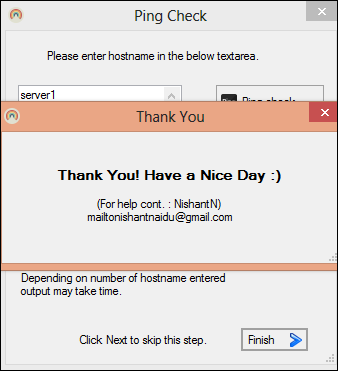
3. Depending on Number of hostname entered output may take time.

4. If you want to erase the hostname that you entered, click on Clear text

Output:

It will generate two text files and save it at your desktop.
Pingservers.txt and NoPingResponse.txt, this text files you can find at your desktop.


Screenshots:


Download :


Thanks you guys, Please comment if you have any query.
Have a Nice Day!